Product guide
As of October 2026
Create Account / Login
1
Create an account via the following link: https://business.unitplus.eu/account-creation.
2
If you already have an account, you can log in using your credentials. https://business.unitplus.eu/login

Registration
1
Once you have logged in or created an account, you can complete the registration process by providing the required information in the following four sections.
Company
Track Record
Video ID or eID
Acceptance of Terms & Conditions and Proof of Source of Funds
2
All necessary information and support for completing the registration can be found in this detailed document: Registration Guide
3
Upon completion of the registration form, our team will review your information and notify you once your account has been verified and your corporate custody account has been established.
4
You may also log in to your account to review the status of your application.

Deposit
1
Click on 'Deposit' within either the Overview or the Portfolio tab to begin.

2
Please select the investment vehicle in which you wish to make a deposit.
3
Subsequently, you will be provided with all bank transfer details alongside a unique reference code.
Empfänger
UNITPLUS
IBAN
DE40 5021 0900 0221 3088 16
BIC
CITIDEFFXX
Reference Code (!): Please ensure this code is entered in the memo field of your bank transfer.
Withdrawal
1
To begin, click on the 'Withdraw' option in either the Overview or the Portfolio tab. Please note: withdrawals may only be initiated by the account holder or authorized administrators.
2
Select the investment vehicle from which you wish to withdraw funds, as well as the destination account to which the amount should be transferred.
3
Please enter your desired withdrawal amount. Please note: The limit for partial withdrawals is capped at 90% of the total portfolio value.
4
You will receive a one-time verification code via email to confirm the withdrawal. Depending on the specific investment vehicle, the funds will be credited to your bank account within 1 to 4 business days.
Please note: If a withdrawal is processed by 11:00 AM, the corresponding funds will be credited to the bank account one business day earlier.
Transfer between portfolios
1
To initiate the reallocation, click on Reallocate (Transfer) in either the Overview or the Portfolio tab.

2
Please select the two investment vehicles for the transfer of funds below and enter the desired amount.
3
You will receive a one-time verification code via email to confirm the transfer. The funds will be credited to the selected portfolio within 1-2 business days.
Portfolio Allocation
1
The overview displays your portfolio allocation, providing a comprehensive breakdown of your asset distribution.
2
Select any of the portfolios to access more detailed information.
3
Click on "Compare" to evaluate the different portfolios.

Liquidity Overview
1
For initial activation, please click "Start now" on the following image in the overview and follow the subsequent instructions.
2
Upon successful activation, you will also be able to view the comprehensive liquidity overview for your company, including your UnitPlus Business Account and all connected bank accounts.
3
Click on Liquidity to obtain further information regarding the connected bank accounts or to add additional bank accounts.

Tax Information
1
Upon payout, the entire repayment amount will be transferred directly to your bank account.
2
Consequently, UnitPlus does not withhold any taxes on capital gains.
3
Please note that each enterprise is responsible for ensuring that all applicable taxes are duly accounted for within their respective tax filings.
4
UnitPlus provides a detailed statement of earnings to assist your company with its tax filing.

Additional Key Functions
1
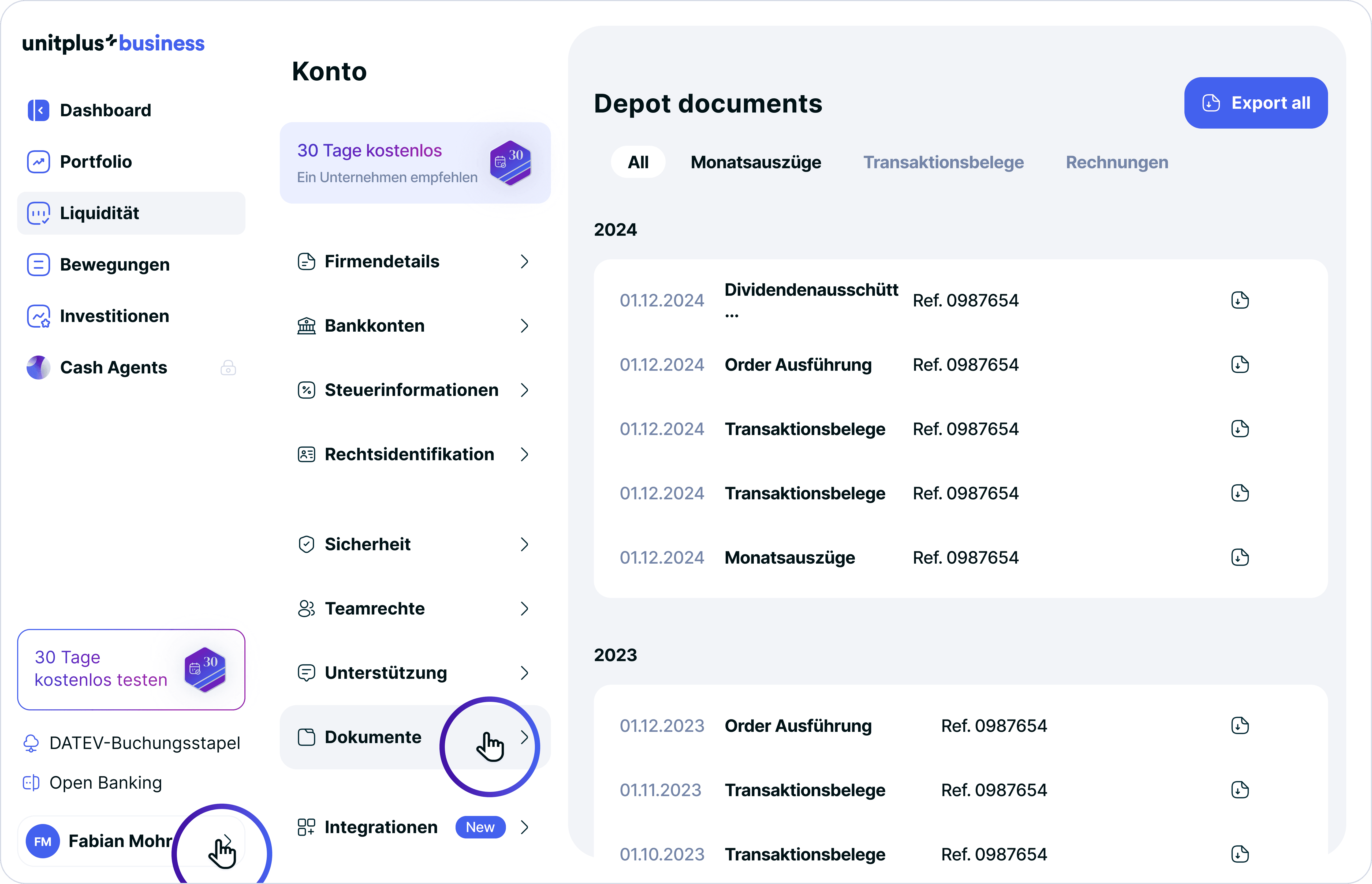
Click on your name in the bottom left corner to access your user account. There, you will find all relevant account information, including company details and tax information, as well as customer support contact details, your company and custody account documents, and user management.
2
To update company information, please contact us by email at support@unitplus.eu.
3
Under User Management, you can add additional users and manage their respective access permissions.
4
The documentation for your accounting purposes and further information regarding your transactions can be found under Documents > Portfolio Documents.
DATEV Integration
If your company utilizes DATEV, you can establish a direct integration to streamline your accounting workflows. Please proceed as follows:
1
On the home screen, click on "DATEV-Buchungsstapel" (DATEV booking batch) in the bottom left corner.
2
Please enter the required company-specific information.
3
Once successfully configured, the data will be automatically updated on a monthly basis.


Do you require further assistance?
Our client services team is at your disposal should you require any assistance.


" width="121.00000129637834px"><path d="M 0 0 L 121 0 L 121 42.456 L 0 42.456 Z" fill="transparent" height="42.45642159168508px" id="pcuJYk0_Q" width="120.99999965040573px"/><path d="M 26.765 11.171 L 26.765 5.087 L 0 36.364 L 0 42.456 Z M 40.006 6.092 L 40.006 0 L 13.241 31.277 L 13.241 37.369 Z M 55.89 23.965 C 55.89 25.413 55.672 29.017 53.636 31.033 C 52.052 32.607 49.974 32.662 47.804 32.662 L 46.354 32.662 L 46.354 16.051 L 47.931 16.051 C 49.599 16.051 50.448 16.03 51.345 16.281 C 55.297 17.375 55.89 21.567 55.89 23.966 Z M 59.461 33.148 C 61.305 30.805 62.239 27.714 62.239 23.965 C 62.239 21.365 61.659 16.576 57.764 13.728 C 55.636 12.169 52.604 11.379 48.751 11.379 L 40.006 11.379 L 40.006 37.325 L 48.255 37.325 C 50.865 37.325 51.946 37.222 52.929 37.043 C 55.573 36.564 57.827 35.213 59.461 33.148 Z M 91.895 37.327 L 98.491 11.379 L 92.673 11.379 L 88.742 29.238 L 84.424 11.379 L 77.891 11.379 L 73.395 29.28 L 69.65 11.38 L 63.399 11.38 L 69.706 37.327 L 76.117 37.327 L 80.917 18.892 L 85.279 37.328 L 91.896 37.328 Z M 106.374 18.482 C 106.374 16.528 107.971 15.26 110.445 15.26 C 112.899 15.26 114.248 16.494 114.446 18.919 L 114.461 19.12 L 120.286 19.12 L 120.286 18.898 C 120.286 18.012 120.286 15.939 118.751 14.054 C 116.483 11.275 112.714 10.859 110.672 10.859 C 102.903 10.859 100.131 15.101 100.131 19.078 C 100.131 22.495 101.771 25.012 109.915 26.986 C 113.195 27.749 114.694 28.095 114.694 30.182 C 114.694 32.205 112.841 33.507 109.972 33.507 C 108.035 33.507 106.713 32.905 106.027 31.705 C 105.462 30.721 105.469 29.578 105.469 28.968 L 105.469 28.698 L 99.53 28.698 L 99.296 28.712 L 99.296 28.933 C 99.332 31.373 99.424 37.854 109.64 37.854 C 116.39 37.854 120.951 34.478 121 29.446 L 121 29.294 C 120.951 24.075 115.91 22.904 111.867 21.954 L 111.66 21.906 C 108.028 21.019 106.374 20.618 106.374 18.482 Z" fill="rgb(255, 255, 255)" height="42.456421634779154px" id="lapVZ619d" width="121.00000129637834px"/></g></svg>)